Thursday, March 17, 2011

Configure Cisco Router as Caching/Forwarding DNS Server

A Cisco Router running Cisco IOS can function as a Caching or Forwarding DNS Server which answers to DNS queries from clients either from its host table or cache or forward it to a DNS server which can respond to the query.

This feature can come in handy in small network environments where the router can act as a Caching DNS server forwarding queries to the ISPs DNS servers or infact any external DNS servers. Also, makes sense using on under utilized DNS servers.

NOTE: This feature can have an impact on the available resource on the Cisco Router and hence plan according to the network size and ofcourse the router itself.

Enable DNS Translations
From the global Configuration mode, enable the DNS server.
ciscrouter# conf term
ciscorouter(config)# ip domain lookup
Add the Name Servers
Add the name servers to which the Cisco Router will forward the queries, if it can't answer from its host table or cache. You can specify upto 6 Namservers in a single command (seperated by a "SPACE") or specifiy one Name-server per command for legibility.
ciscorouter(config)# ip name-server 192.168.1.1 192.168.2.1
Add Hosts (optional)
Add host entries to the host table manually, if required
ciscorouter(config)# ip host webserver 10.1.1.100
In the above, the IP address 10.1.1.100 is mapped to the hostname "webserver"

Set Default Domain Name(s)
Optionally, add a domain name or a list of domain names that the Cisco Router can use to append to a unqualified hostname. Using a list is useful where the router tries to try one domain name at a time until it finds a match.

To set a single domain name
ciscorouter(config)# ip domain name example.com
To set a list of Domain names
ciscorouter(config)# ip domain list example.com
ciscorouter(config)# ip domain list test.com
ciscorouter(config)# ip domain list myowndomain.com
Set Domain Lookup Timeout (optional)
Optionally, you can set the timeout in seconds for the Cisco router to wait for a resonse to a DNS query. The default is 3 seconds
ciscorouter(config)# ip domain timeout 5
Set Domain Lookup Retry (optional)
Again optional, you can set the number of retry attempts for the DNS queries. Default is "2" times
ciscorouter(config)# ip domain retry 5
Enable DNS Round Robin (optional)
If there are hosts with load balancing enabled and having more than 1 host (example, 10.1.1.101, 10.1.1.102,10.1.1.103 are all pointing to a host, "dbserver") it makes sense to enable the DNS RoundRobin feature to rotate among the hosts else the 1st cached hosts will only be picked up causing load issues on that particular hosts
ciscorouter(config)# ip host dbserver 10.1.1.101 10.1.1.102 10.1.1.103
ciscorouter(config) ip domain round-robin

Wednesday, March 16, 2011

VMware vSphere 4.1 – USB Pass-through

USB Devices Supported for Passthrough from an ESX/ESXi Host to a Virtual Machine

Device Model Vendor ID:Product ID Device Display Name
SafeNet Sentinel Software Protection Dongle (purple) 04B9:8000 Rainbow SafeNet Sentinel
SafeNet Sentinel Software Protection SuperPro Dongle (gray) 04B9:3000 Rainbow USB UltraPro
SecuTech Unikey Software Protection Dongle 0403:C580 Future Devices HID UNIKEY
MAI KEYLOK II Software Protection Dongle 07F2:0001 Microcomputer Applications USB Device
MAI KEYLOK Fortress Software Protection Dongle (Designed to work only with Windows operating systems.)

Note: This dongle is not designed for Linux systems. If you connect it to Linux systems, the connection resets frequently and can cause unexpected behavior.
0471:485e Philips KEYLOK Device
Aladdin HASP HL Drive 0529:0001 (13fe:1a00 Hub, 13fe:1d00 Drive) Aladdin Knowledge HASP HL 3.21, Kingston drive
Aladdin HASP HL Basic Software Protection Dongle 0529:0001 Aladdin Knowledge HASP HL 3.21
Aladdin HASP HL Pro Software Protection Dongle 0529:0001 Aladdin Knowledge HASP HL 3.21
Aladdin HASP HL Max Software Protection Dongle 0529:0001 Aladdin Knowledge HASP HL 3.21
Aladdin HASP HL Net Software Protection Dongle 0529:0001 Aladdin Knowledge HASP HL 3.21
Aladdin HASP HL NetTime Software Protection Dongle 0529:0001 Aladdin Knowledge HASP HL 3.21
Kingston DataTraveler 101 II 4GB 0930:6545 Toshiba DT 101 II
Lexar JD FireFly 2GB 05dc:a701 Lexar Media JD FireFly
Western Digital My Passport Essential 250GB 2.5 HDD 1058:0704 Western Digital External
Cables To Go USB 2.0 7-Port Hub Model# 29560 04cc:1521 Not applicable

 
USB pass-through has been part of the likes of VMware Workstation for quite some time, but is new to vSphere with the 4.1 release 

To connect a USB device to a virtual machine (VM) in vSphere you need to first add a USB Controller to the VM.
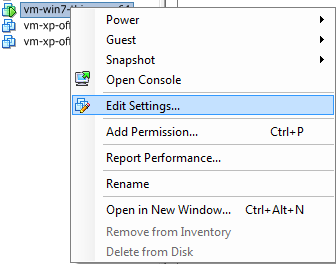
Select the virtual machine in the vSphere inventory, then right click it and click Edit Settings.


Click the Add button and then select USB Controller from the list. (You can only add a single USB Controller to a VM).


Now you can connect a USB device – but if the device does not show up then it not supported.
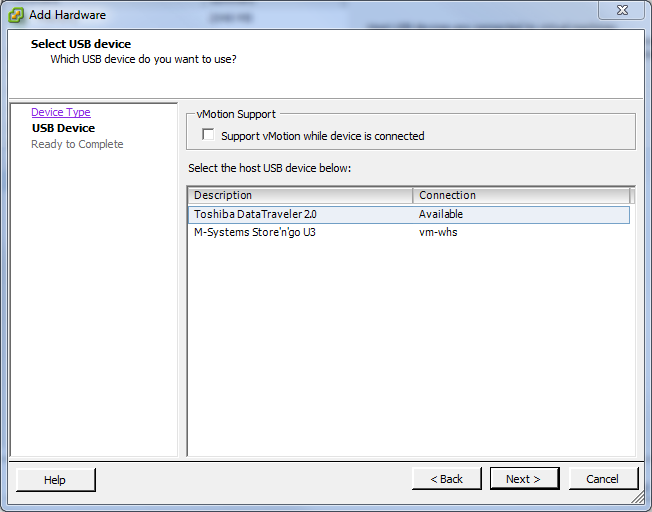
Click Edit Settings again and then click the Add button and then select USB Device.


Select the USB device that you want to connect to the VM from the available device(s). Here you can see that I already have one device connected to a VM already.


Tuesday, February 8, 2011

VMware “Cannot open the disk ‘XXXXXX.vmdk’ or one of the snapshot disks it depends on.”

From time to time, I want to copy just the minimum files for a VMware virtual machine: the two .vmdk files and the .vmx file. After moving those files to a new location or deleting a snapshot file, attempting to boot the virtual machine returns the following error message:

Cannot open the disk ‘XXXXXX.vmdk’ or one of the snapshot disks it depends on.

Reason: The system cannot find the file specified.

I’ve found that following the steps below fixes the problem and allows me to boot the virtual machine as it existed at the time of creation. DO NOT USE these steps if you need to retain any changes to the machine:

Open the *.vmx file in a text editor and find the line that refers to the old snapshot file, which will look something like:

scsi0:0.fileName = “XXXXXX-000002.vmdk”

or

ide0:0.fileName = “XXXXXX-000002.vmdk”

Change the value to the filename of the ~1kb .vmdk file (which happens to be the same as the name of the VM). For example, if your virtual machine was named “Windows XP Professional”, the line would read:

scsi0:0.fileName = “Windows XP Professional.vmdk”

Power on the VM. It should boot normally, but because the snapshot file is missing, the machine will boot to an earlier state.