Showing posts with label VMware. Show all posts

Friday, May 13, 2011

How To Backup ESXi Configuration – The Missing Piece

This came up on #VMware on Freenode this weekend. Basically the concern was “How do I Backup my ESXi USB Key?” Other than ripping the USB key out of a production machine… how was the user to do this? Well, vMA and the vCLI provide a method for this:

Backing up your ESXi Configuration:

To backup your ESXi configuration you’ll be using the vicfg-cfgbackup.pl command as follows:
  • Download either the vMA or vCLI
  • Launch vicfg-cfgbackup.pl:
    C:\Program Files\VMware\VMware vSphere CLI\bin>vicfg-cfgbackup.pl –save –server 192.168.15.253 –username root –password password backup.bak
  • Note: The backup will be stored relative to your user “AppData” path:
    C:\Users\Username\AppData\Local\VirtualStore\

Restoring your ESXi Configuration:

Restoring your ESXi config can be done after you have the host up and responding over the network again by using the following:

C:\Program Files\VMware\VMware vSphere CLI\bin>vicfg-cfgbackup.pl –load –server 192.168.15.253 –username root –password password backup.bak

Note: You will be asked to reboot the host on restore.

Backing up multiple hosts! – There is a script to backup multiple ESXi hosts on the VMware communities site here. Also in PowerCLI here!

[Edit: Added link to backup multiple ESXi hosts from William in the comments. Thanks William!]
[Edit 2: Added PowerCLI link from NiTRo. Site is in French, PowerCLI is not]


ESXi and USB failure?

Interesting Article

In recent years, servers with embedded USB storage have become common practice. Today, all major hardware vendors deliver servers with embedded ESXi. Even in my home lab, servers are equipped with an onboard USB connector, USB stick and ESXi. Recently, on one host, the USB stick was moved to an external connector.  I was wondering, what would happen with an ESXi host with USB stick failure. Or even worse, pulling the USB stick.

So, after booting up my 2 node cluster, I made a fresh backup of a few important VMs and checked the vCenter Service Status. Now, it is time to remove the USB stick from one host. And this is what happened:
  • VMs on the affected host are still running.
  • Task & Events of the affected host shows this message “Lost connectivity to storage device mpx.vmhba32:C0:T0:L0. Path vmhba32:C0:T0:L0 is down. Affected datastores: “Hypervisor1”, “Hypervisor2”, “Hypervisor3”.”.
  • Followed by 3 Alarms “Cannot connect to storage”.
  • Another message in Tasks & Events is “Boot partition /bootbank cannot be found (0:02:33:03.304 cpu1:30722)”.
  • Time for some testing, all these actions do work: Power On a VM, Migrate a VM, host in Maintenance Mode, Exit Maintenance Mode (HA Agent is configured correctly).
  • Also the ESXi console is doing fine, System Customization is in place, and so are the System Logs.
  • From time to time above messages are repeated and in some occasions while migrating VMs “The Operation is not allowed in the current state” messages are received.
  • After 24 hours, the host is still running, and performing. So finally, I decided to enter the host in Maintenance Mode and shut it down. The power down took about 10 minutes ( less then 2 minutes is normal).
  • After insertion of the USB stick, the host was powered on and was automatically reconnected to the cluster.
At this time, my tentative conclusion is that failure, or even an missing USB stick does not have much impact on a ESXi host. Thanks for reading and I’m very interested in your experience and opinions concerning this subject.
P.S. A few days after posting, I stumbled onto this post, written by Alan Renouf. In the first part it is explained why ESXi keeps running without USB boot device.

Script from Alan to backup ESXI host.

############################
$RootFolder = "C:\Support\"
Get-VMHost | Foreach {
Write-Host "Backing up state for $($_.Name)"
$Date = Get-Date -f yyyy-MM-dd
$Folder = $RootFolder + $Date + "\$($_.Name)\"
If (-not (Test-Path $Folder)) {
MD $Folder | Out-Null
}
$_ | Get-VMHostFirmware -BackupConfiguration -DestinationPath $RootFolder
# Next line is a workaround for -DestinationPath not working correctly
# with folder names with a - in them.
MV ($RootFolder + "*") $Folder -ErrorAction SilentlyContinue
########################################

Thursday, May 5, 2011

To check the number of cores for a CPU in a virtual machine, you can use one of these utilities:
  • Coreinfo
    Coreinfo is a Microsoft command-line utility, developed by Mark Russinovich. It displays the mapping between logical processors and the physical processor, NUMA node, and socket on which they reside. It also provides information on the cache assigned to each logical processor.

    To check the distribution of cores across socket, use the coreinfo -c -s command. To download and install coreinfo, click
    here.
  • CPU-Z utility
    CPU-Z is a freeware application for Microsoft Windows operating systems and it provides information about CPU, Processor, Cache, Memory, System board, Graphics, and other hardware features. To download and install CPU-Z, see
    http://www.cpuid.com/.
In the figure below, the cpuid.coresPerSocket is set to 4 and, therefore, the number of cores per CPU is 4.
 
 
For information about setting the number of cores per socket in a virtual machine, see Setting the number of cores per CPU in a virtual machine (1010184).

Additional Information

  • CPU – Is the portion of a computer system that performs the instructions of a computer program. It is the primary element that carries out the computer’s functions. 
  • Core – Is a logical execution unit containing an L1 cache and functional units needed to execute programs. Cores can independently execute programs or threads. 
  • Socket – Is a physical connector on a computer motherboard that accepts a single physical chip.

Wednesday, May 4, 2011

Setting the number of cores per CPU in a virtual machine

Some operating system SKUs are hard-limited to run on a fixed number of CPUs. For example, Windows Server 2003 Standard Edition is limited to run on up to 4 CPUs. If you install this operating system on an 8-socket physical box, it runs on only 4 of the CPUs. The operating system takes advantage of multi-core CPUs so if your CPUs are dual core, Windows Server 2003 SE runs on up to 8 cores, and if you have quad-core CPUs, it runs on up to 16 cores, and so on.

Virtual CPUs (vCPU) in VMware virtual machines appear to the operating system as single core CPUs. So, just like in the example above, if you create a virtual machine with 8 vCPUs (which you can do with vSphere) the operating system sees 8 single core CPUs. If the operating system is Windows 2003 SE (limited to 4 CPUs) it only runs on 4 vCPUs.
 
 
Note: Remember that 1 vCPU maps onto a physical core not a physical CPU, so the virtual machine is actually getting to run on 4 cores.
 
Considering that 1 vCPU is equal to 1 CPU is an assumption for the sake of simplification, since vCPUs are scheduled on logical CPUs which are hardware execution contexts. These tasks can take a while in the case of a single core CPU, CPUs that have only 1 thread per core, or could be just a thread in the case of a CPU that has hyperthreading.
Consider this scenario:
In the physical world you can run Windows 2003 SE on up to 8 cores (using a 2-socket quad-core box) but in a virtual machine they can only run on 4 cores because VMware tells the operating system that each CPU has only 1 core per socket.
VMware now has a setting which provides you control over the number of cores per CPU in a virtual machine.
This new setting, which you can add to the virtual machine configuration (.vmx) file, lets you set the number of cores per virtual socket in the virtual machine.
 
To implement this feature:
  1. Power off the virtual machine.
  2. Right-click on the virtual machine and click Edit Settings.
  3. Click Hardware and select CPUs.
  4. Choose the number of virtual processors.
  5. Click the Options tab.
  6. Click General, in the Advanced options section.
  7. Click Configuration Parameters.
  8. Include cpuid.coresPerSocket in the Name column.
  9. Enter a value (try 2, 4, or 8) in the Value column.Note: Ensure that the number of vCPUs is divisible by the number of cpuid.coresPerSocket in the virtual machine. That is, when you divide the number of vCPUs by the number of cpuid.coresPerSocket, it must return an integer value. For example, if your virtual machine is created with 8 vCPUs, coresPerSocket can only be 1, 2, 4, or 8.

    The virtual machine now appears to the operating system as having multi-core CPUs with the number of cores per CPU given by the value that you provided in step 9.
  10. Click OK.
  11. Power on the virtual machine.

For example:
Create an 8 vCPU virtual machine and set cpuid.coresPerSocket = 2. Window Server 2003 SE running in this virtual machine now uses all 8 vCPUs. Under the covers, Windows sees 4 dual-core CPUs. The virtual machine is actually running on 8 physical cores.
 
Note:
  • Only values of 1, 2, 4, 8 for the cpuid.coresPerSocket are supported for the multi-core vCPU feature in ESX 4.x.
  • In ESX 4.0, if multi-core vCPU is used, hot-plug vCPU is not permitted, even if it is available in the UI.
  • Only HV 7 virtual machines support the multi-core vCPU feature.
Important: When using cpuid.coresPerSocket, you should always ensure that you are in compliance with the requirements of your operating system EULA (Regarding the number of physical CPUs on which the operating system is actually running).

Wednesday, April 13, 2011

Choosing a network adapter for your virtual machine

Network adapter choices depend on t he version number and guest operating system running on the virtual machine.


Available Network Adapters
Only those network adapters that are appropriate for the virtual machine you are creating, are available configuration options in the Choose Networks window.
  • Vlance — An emulated version of the AMD 79C970 PCnet32 LANCE NIC, an older 10 Mbps NIC with drivers available in most 32bit guest operating systems except Windows Vista and later. A virtual machine configured with this network adapter can use its network immediately.
  • VMXNET — The VMXNET virtual network adapter has no physical counterpart. VMXNET is optimized for performance in a virtual machine. Because operating system vendors do not provide built-in drivers for this card, you must install VMware Tools to have a driver for the VMXNET network adapter available.
  • Flexible — The Flexible network adapter identifies itself as a Vlance adapter when a virtual machine boots, but initializes itself and functions as either a Vlance or a VMXNET adapter, depending on which driver initializes it. With VMware Tools installed, the VMXNET driver changes the Vlance adapter to the higher performance VMXNET adapter.
  • E1000 — An emulated version of the Intel 82545EM Gigabit Ethernet NIC. A driver for this NIC is not included with all guest operating systems. Typically Linux versions 2.4.19 and later, Windows XP Professional x64 Edition and later, and Windows Server 2003 (32-bit) and later include the E1000 driver.
  • VMXNET 2 (Enhanced) — The VMXNET 2 adapter is based on the VMXNET adapter but provides some high-performance features commonly used on modern networks, such as jumbo frames and hardware offloads. This virtual network adapter is available only for some guest operating systems on ESX/ESXi 3.5 and later.

    VMXNET 2 is supported only for a limited set of guest operating systems:
    • 32 and 64bit versions of Microsoft Windows 2003 (Enterprise and Datacenter Editions).

      Note: You can use enhanced VMXNET adapters with other versions of the Microsoft Windows 2003 operating system, but a workaround is required to enable the option in VMware Infrastructure (VI) Client or vSphere Client. See
      Enabling enhanced vmxnet adapters for Microsoft Windows Server 2003 (1007195) if Enhanced VMXNET is not offered as an option.
    • 32bit version of Microsoft Windows XP Professional
    • 32 and 64bit versions of Red Hat Enterprise Linux 5.0
    • 32 and 64bit versions of SUSE Linux Enterprise Server 10
    • 64bit versions of Red Hat Enterprise Linux 4.0
    • 64bit versions of Ubuntu Linux
  • VMXNET 3 — The VMXNET 3 adapter is the next generation of a paravirtualized NIC designed for performance, and is not related to VMXNET or VMXNET 2. It offers all the features available in VMXNET 2, and adds several new features like multiqueue support (also known as Receive Side Scaling in Windows), IPv6 offloads, and MSI/MSI-X interrupt delivery.

    VMXNET 3 is supported only for virtual machines version 7 and later, with a limited set of guest operating systems:
    • 32 and 64bit versions of Microsoft Windows XP, 2003, 2003 R2, 2008,and 2008 R2.
    • 32 and 64bit versions of Red Hat Enterprise Linux 5.0 and later
    • 32 and 64bit versions of SUSE Linux Enterprise Server 10 and later
    • 32 and 64bit versions of Asianux 3 and later
    • 32 and 64bit versions of Debian 4
    • 32 and 64bit versions of Ubuntu 7.04 and later
    • 32 and 64bit versions of Sun Solaris 10 U4 and later
Notes:
  • Jumbo frames are not supported in Solaris Guest OS with VMXNET 2 or VMXNET 3.
  • Fault Tolerance is not supported on a virtual machine configured with a VMXNET 3 vNIC in vShpere 4.0, but is fully supported on vSphere 4.1.
Adapter Caveats
This section discusses some potential problems you might have.
  • Migrating virtual machines that use enhanced vmxnet
    VMXNET 2 is new with ESX 3.5 virtual machines configured to have VMXNET 2 adapters cannot migrate to earlier ESX hosts, even though virtual machines can usually migrate freely between ESX 3.0 and ESX 3.0.x.

    I
    f you must migrate a virtual machine between later and earlier hosts, do not choose VMXNET 2.
  • Upgrading from ESX 2.x to ESX 3.x
    When a virtual hardware upgrade operation transforms a virtual machine created on an ESX 2.x host to an ESX 3.x host, Vlance adapters are automatically upgraded to Flexible. In contrast, VMXNET adapters are not upgraded automatically because most or all Linux guest operating system versions do not reliably preserve network settings when a network adapter is replaced. Because the guest operating system thinks a Flexible adapter is still Vlance, it retains the settings in that case. If the upgrade replace a VMXNET adapter with a Flexible adapter, the guest operating system erroneously discards the settings.
    After the virtual hardware upgrade, the network adapter is still VMXNET, without the fall back compatibility of the Flexible adapter. Just as on the original earlier host, if VMware Tools is uninstalled on the virtual machine, it cannot access its network adapters.
  • Adding virtual disks
    Adding an existing earlier (ESX 2.x) virtual disk to an ESX 3.x virtual machine results in a de-facto downgrade of that virtual machine to ESX 2.x. If you are using ESX 3.x features, such as enhanced VMXNET or Flexible network adapters, the virtual machine becomes inconsistent. When you add an existing ESX 2.x virtual disk to an ESX 3.x machine, immediately use the Upgrade Virtual Hardware command to restore the virtual machine to the ESX 3 version. This problem does not arise when you add earlier virtual disks to an ESX/ESXi 4.0 virtual machine.

    Note: Executing Upgrade Virtual Hardware changes the ESX 2 virtual disk so that it is no longer usable on an ESX 2 virtual machine. Consider making a copy of the disk before you upgrade one of the two copies to ESX 3 format
    .
For more information on guest operating systems, search the VMware Compatibility Guide.

Tuesday, April 12, 2011

Standard ESX networking tasks from command line

As I was looking around in the command line interface (which is pretty new for me) I came around the esxcfg- command set. In particular the commands to manage the NIC’s (part 1) and the vSwitches (part 2) raised my interest. I decided to explore a bit further and write down how to do some standard actions. So here goes for NIC operations…

Listing all NIC’s

esxcfg-nics -l

This commands gives you a nice list of all the available NIC’s and all their properties. Those properties include name, link, speed, duplex and description.

Setting a specific link speed and duplexity of a NIC

The thing I want to do here is set my ‘vmnic3′ (the name I got from my previous command) to a speed of 100Mbps and I want to set it to full duplex. The command to do this is:

esxcfg-nics -s 100 -d full vmnic3

The ‘-s’ parameter defines the speed. This parameter can hold the values 10, 100, 1000 and 10000 respectively defining the speed to 10Mbps, 100Mbps, 1000Mbps and 10000Mbps.
The ‘-d’ parameter defines the duplexity. This parameter can hold the value ‘full’ for full duplex and ‘half’ for half duplex.

Setting link speed and duplexity of a NIC to automatic detection

To set my ‘vmnic3′ back to automatic detection I use the following command:

esxcfg-nics -a vmnic3

The ‘-a’ parameter simply sets the link speed and duplexity of the NIC back to automatic.
I hope this was useful to someone. At least I got better understanding and a little reminder for myself how to do these things. In part 2 I will cover some standard networking tasks considering virtual switches using the command esxcfg-vswitch.

Listing all virtual switches

esxcfg-vswitch -l

This commands gives you a list of all the configured virtual switches with their PortGroups and connected uplinks. Further more a lot of properties are shown about the vSwitches and PortGroups. For vSwitches it shows among other things the name, the uplinks, the number of used ports and the number of configured ports. For PortGroups it shows the PortGroup name, VLAN ID and uplinks.

Add a virtual switch called ‘TestSwitch1′

It’s really simple to add a virtual switch to an ESX server. You simply use the following command:

esxcfg-vswitch -a TestSwitch1

This creates a virtual switch with the name ‘TestSwitch1′. It still has no PortGroups and it has been set with the default amount of configured ports (64). To see all the properties use the command provided earlier to list the virtual switches. If you want to specify the number of configured ports you can use the following command:

esxcfg-vswitch -a TestSwitch1:16

This gives you a virtual switch named ‘TestSwitch1′ with 16 configured ports.

Add a PortGroup to a virtual switch called ‘TestPortGroup1′

Now we want to add a PortGroup to a virtual switch. The following command adds a PortGroup called ‘TestPortGroup1′ to our previously created virtual switch:

esxcfg-vswitch -A TestPortGroup1 TestSwitch1

This will create a PortGroup with VLAN ID 0. Notice that this time we used ‘-A’ to add the PortGroup since ‘-a’ is used for adding virtual switches. When we want to set the VLAN ID of the PortGroup we have to issue a second command. This command will set the VLAN ID of the PortGroup we just created to VLAN ID 2. The parameter ‘-p’ defines the PortGroup and ‘-v’ defines the VLAN ID you want to set it to.

esxcfg-vswitch -p TestPortGroup1 -v 2 TestSwitch1

Add an uplinkto the virtual switch and PortGroup

So now we got a virtual switch and a PortGroup. I guess we would like some connection to the outside world. So when we want to bind a physical NIC to the created PortGroup the thing to do is link the pNIC to the virtual switch and after that we automatically have the link to the PortGroup. First you need to find out what pNIC you want to bind to the virtual switch. You can check the names of the pNIC’s with the command esxcfg-nics -l. Now that we know the name we can bind it to the virtual switch. With the following command I will bind ‘vmnic4′ to the created virtual switch:

esxcfg-vswitch -L vmnic4 TestSwitch1

Notice that the l is a capital L, the normal l is already used for showing the list. Now we have configured the virtual switch correctly and we have a fully functional virtual switch with a virtual machine port group.

Remove a link from the PortGroup and virtual switch

Well first lets undo the links we just binded to the PortGroupand the virtual switch. It’s al pretty straightforward from here. If you managed to make the links it will be just as easy to undo them. The command for disconnecting the pNIC from the virtual switch is:

esxcfg-vswitch -U vmnic4 TestSwitch1

This will unlink ‘vmnic4′ from the virtual switch and the PortGroup. Notice that the ‘-U’ parameter is with a capital U just like the ‘-L’ for linking the pNIC.

Remove a PortGroup from the virtual switch

Removing the PortGroup is really simple. You just take the command you used to create the PortGroup, but instead of the ‘-A’ parameter you use the ‘-D” parameter (all capital). So the command to accomplish a deletion of the PortGroup ‘TestPortGroup1′ from virtual switch ‘TestSwitch1′ is:

esxcfg-vswitch -D TestPortGroup1 TestSwitch1

Now the virtual switch should be empty (if you didn’t do anything else to the virtual switch). There should be no PortGroups and no connected uplinks.

Removing a virtual switch

Now to set everything we have done back to the original state we have to delete the virtual switch we just made. Again this is really simple if you alter  the create command. Just replace the ‘-a’ parameter with ‘-d’. The same as with the PortGroup only this time no capital characters.

esxcfg-vswitch -d TestSwitch1

And now if you list all the virtual switches again this should give you the same picture as at the beginning.

Ofcourse there are lots of things more you can do from command line networking related, but I thought this was the most basic and standard stuff you would want to do. Scott Lowe wrote some articles about more advanced operations like Setting Load Balancing Policies and Modifying a PortGroup using the CLI. I hope this articles were useful for all of you. At least it has given me a nice reference for the future.

Monday, April 11, 2011

Vmware Build Number

 All,

To find the VMware Build no to their appropriate Release or Update. Follow the link below.

VMware Build Numbers

Easiest way to view ESX/ESXi log files

What is the fastest way to retrieve log files from an ESXi host? In my opinion, the best way is to configure remote logging via syslog server but this requires host reboot to apply configuration changes (KB1016621). The alternative method is to forward log files to different datastore. 
If  you don't have prepared syslog server for remote logging you can use vsphere client and generate system log bundles for particular host. But this takes some time. 
The last method is I think the fastest one because it will allow you to access log files  directly with your web browser. You can use web interface of the ESXi host,  enter the following URL:

https://ESXi_HOST_ADDR/host

The output should looks like shown at this picture:
You can download ESXi log files  messages, hostd.log and vpxa.log  now.

Saturday, April 9, 2011

Upgrade ESX3.5 to ESX4 with vSphere Host Update Utility

In this post, I would like to introduce vSphere Host Update tool. With this tool you’re able to update an ESX host without VMware Update Manager, just like the VMware Infrastructure Update utility. This utility tool is an optional tool & bundled inside vSphere Client installer, this means that you can install it while you are installing vSphere Client. In this post I will guide you through the upgrade process of an ESX 3.5 host which runs on HP Proliant DL380 G4.
Start the vSphere Host Update Utility here:
vSphere Host Update Utility 4.0
At the same time, fire-up your Virtual Infrastructure Client & login to the existing ESX3.5 server with Update 3, as shown as below. As a reminder, any upgrade on ESX host process only can be proceed while it is in maintenance mode.
existing ESX 3.5 server update 3
Now back to the new utility. First what we need to do is adding ESX host by clicking Add Host at the right top of the utility window & enter the ESX server IP address.
Add ESX host
After added the ESX host, so now we’re ready to upgrade. Select the host and press the upgrade button.
added ESX hosts
The ESX 4.0 Upgrade Wizard starts. You’ll have to add the upgrade iso file which you can download from VMware.com which available on 21st May 2009 onwards.
ESX ugrade wizard
Enter the credentials for your host. If you haven’t set the ESX host enter maintenance mode, you’ll see an error as below:
ESX credentials

So beware, any upgrade on ESX host process only can be proceed while it is in maintenance mode.
Then it will run compatibility check on ESX host.
compatibility check
Next you’ll be prompted to assign the Console OS disk size & disk location. At this practice, i assign 10GB.
Concole OS setting
At the next window, just tick the first option in order to make sure the existing ESX server will not be corrupted in case of any upgrade failure occurs.
post upgrade
Now, you are ready to complete the wizard & starts the upgrade process.
wizard complete
Firstly, it will copy the entire ISO image to the ESX server for a faster upgrade process & avoid any network interruption upon post-upgrade is running on.
copy ISO image
After finishing copied, it starts to install new packages for ESX 4.0.
Installing packages
While this process is running, your VI Client which connected to the ESX host will be disconnected as-well.
This is due to the new updates on Apache Tomcat & some web services.
Finally, you will successfully upgraded to the ESX 4 if everything goes smooth like my practice.
upgrade suceeded
And now, you can use vSphere Client to login to new ESX 4.0 to see the new interface of ESX 4.0.

'VMware Server cannot find the virtual disk' on VMware Server

Summary
When starting the VM on Blade 5, the following error appears:
    VMware Server cannot find the virtual disk "//disk3.vmdk". Please verify the path is valid and try again. Cannot open the disk '//disk3.vmdk' or one of the snapshot disks it depends on. Reason: The system cannot find the file specified.
You may find that the your file equivalent of "disk3.vmdk" may not be found. However, other files may be found:
    -r--r--r-- 1 root root 11 Dec 21 16:38 disk3.vmdk.RESLCK.WRITELOCK
    -rw------- 1 oracle dba 4096 Sep 25 17:52 disk3.vmdk.RESLCK
    -rw------- 1 oracle dba 437 Dec 12 13:41 disk4.vmdk
    -rw------- 1 oracle dba 437 Dec 12 13:41 disk5.vmdk
    -rw------- 1 oracle dba 437 Dec 12 13:41 disk6.vmdk
    -rw------- 1 oracle dba 434 Dec 12 13:34 disk7.vmdk
    -rw------- 1 oracle dba 434 Dec 12 13:37 disk8.vmdk
Deleting the disk3.vmdk.RESLCK.WRITELOCK file did not make a difference.

Details
1. Manually create the //disk3.vmdk file (copy any of the other ones, e.g. disk5.vmdk), and change the following two values:
CID=0187ef8f                   <-- this should be a random number
RW 20971520 FLAT "/dev/sdh" 0  <-- change this to /dev/sdh or equivalent to your environment

Explanation why I used "0187ef8f":
Per http://sanbarrow.com/vmdk/vmdk-basic-CID-chain-repair.html, CID was a number randomly assigned by VMware Server. I figured, why not use a random CID (I just used the one in the website), after confirming that it's not in any of the .vmdk files.

Explanation why I used /dev/sdh:
All the other .vmdk files were already pointing to various files under /dev:
    disk4.vmdk: RW 20971520 FLAT "/dev/sdi" 0 disk5.vmdk: RW 20971520 FLAT "/dev/sdj" 0 disk6.vmdk: RW 20971520 FLAT "/dev/sdk" 0 disk7.vmdk: RW 2097152 FLAT "/dev/sdl" 0 disk8.vmdk: RW 2097152 FLAT "/dev/sdm" 0
So that leaves the only available ones:
    /dev/sdg /dev/sdh
Since lun33.vmdk was the first file, I chose to use /dev/sdh which was the one immediately preceding /dev/sdi and used by lun34.vmdk. This was a risk, but what choice did I have?

2. The VM server started up!!!

Monday, April 4, 2011

Linux VM No Longer Boots After Upgrade To ESXi 4.1

One Linux VM was recently upgraded to ESXi 4.1 and found that all of the Windows servers work fine but the Linux server will not boot. 

The error message when the linux server tries to boot suggests trying to boot with the NOAPIC option 


Solution:
From Redhat AS4 update 7, 'noapic'  is  disabled. Kernel versions before have to hardcord 'noapic' under grub.conf


VMware: “Failed to read the upgrade package metadata.xml” upgrading to ESXi 4.1

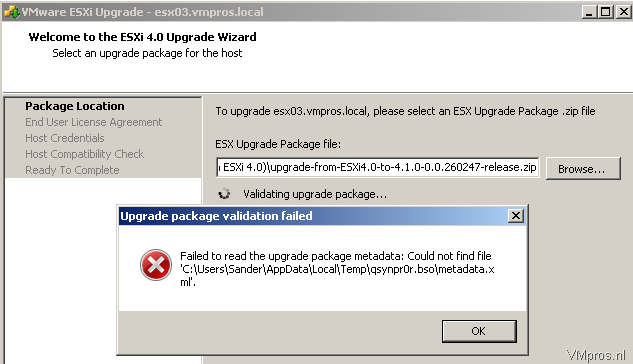
I was upgrading my ESXi 4.0 Update 2 host to ESXi 4.1 with “VMware vSphere Host Update Utility”, I downloaded the “ESXi 4.1 (upgrade ZIP from ESXi 4.0)” file and selected this package to upgrade the host. After validating the upgrade package I received this error:
Failed to read the upgrade package metadata: Could not find file metadata.xml
image

I’ve checked the MD5 checksum.. it was correct.. I downloaded again the upgrade package from the VMware site.. still this warning..
Solution:
ESXi doesn’t support SSH shell or, but there is a “hack” to connect the console or connect over SSH for the command line interface. Check: http://blog.vmpros.nl/2008/12/25/vmwareesxi-35-does-ship-with-the-ability-to-run-ssh/
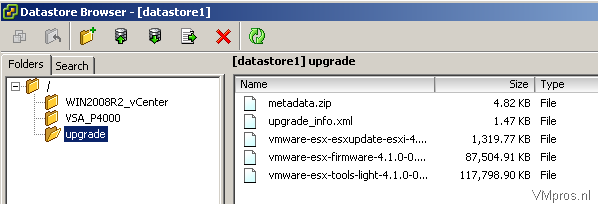
With my VI Client I connected the datastore and uploaded the upgrade package in a new created folder called: “upgrade”

image

- Put the ESXi host in maintenance mode ^ 

image

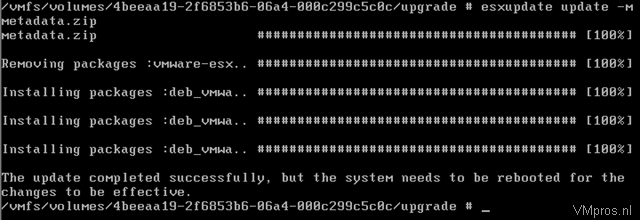
- Connect the console and browse the /vmfs/volumes/[datastore01]/upgrade/ path^

image

– Give the command: “esxupdate update –m metadata.zip” and the upgrade from ESXi 4.0 Update 2 to ESXi 4.1 will be installed.. reboot your host ^


image

My ESXi4.0 U2 is succesfully upgraded to ESXi 4.1 :D